
Create videos using Clipchamp
Find out how to get the most from Microsoft’s Clipchamp, a screen recording and video editing tool.
About Clipchamp
You can record your screen for demonstrations and presentations. You can also add video material from other sources to produce a finished video. This is a powerful piece of software and students at the University of Salford can use it to make videos for assessment submissions.
You can access Clipchamp from a web browser, without needing to download any software, using an internal or external microphone and webcam.
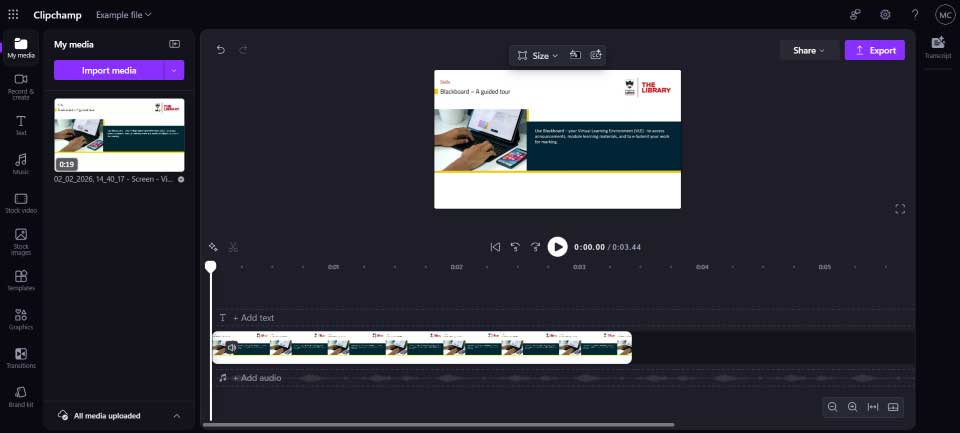
Clipchamp features include:
- Editing using Cutting and Trimming tools.
- Applying Filters, Transitions and Text overlays.
- Exploring its library of stock images, videos and music for use in your projects.
- Adding inclusive auto-captions.
Access Clipchamp
- Access Clipchamp via your university Microsoft 365 homepage or go to https://clipchamp.com/
- If prompted, sign-in with your University email address and password.
- You'll need a microphone to record audio and a headset, or speakers to hear and edit your video.
- If you want to include a talking head, you'll need a webcam.
Clipchamp training
- Start with a Beginner’s guide to Clipchamp (12.52mins).
- Discover more with this LinkedIn Learning course ‘Microsoft Clipchamp: A Beginner's Guide...' (2 hours)
Guidance for your assessment
You can record videos on many different devices. However, you need to remember some key steps when producing a video as an assignment submission.
Do
- Refer back to your Assessment Guidance document to check you have covered all aspects of the question.
- Check the quality of image and sound. Do tests to check your process.
- You must be clearly heard, and any pictures should also be easily viewed.
- Check the settings on your recording device. Set Video to 720p ideally or 1080 maximum. This'll help keep the size of the file manageable and save on upload times when you submit.
- Your video must be in mp4 format. Uploading large files to Blackboard can take a while, especially if using your home wi-fi. If upload speeds are an issue at home, then upload at University if possible.
Don’t
- Your file size should not exceed 1 GB.
- You don't need to record at 4K quality as newer mobile phones do. This'll make the file too big, and you'll not be able to upload it on Blackboard.
- Avoid lots of special effects. This is a video assessment submission - focus on what you have been asked to produce.
- Don’t wait until the deadline day to submit. Large files do take a while to upload. You'll run out of time if you leave submission until the last hour!