
Phishing Scams
Phishing scams aim to trick you into giving out your personal details such as usernames, passwords or bank details, visit a website which may download a virus onto your computer or send money. This can be done by email, text message or over the phone.
On this page, you can learn how to spot a phishing scam, what to do if you’ve clicked on a suspicious email, and how to report it to not only protect your data, but also to safeguard other members of our community and improve our systems.
Remember, every time you receive a phishing email:
- Always report phishing emails, even if you don't click on a suspicious link – don’t ignore them.
- Don’t click any links, open attachments or approve unexpected sign in requests.
- Don’t forward the email.
- Don’t reply to the email.
How to spot a phishing scam and what to do
Learn the signs
Phishing scams often have clear signs. When you receive any email or text message, look out for the following things.
- Suspicious offers. For example, a phishing scam could offer a very expensive item for a bargain price. Remember, if it looks too good to be true, it probably is.
- Suspicious senders that “don’t look quite right”. Be on the lookout for email addresses that are external to the University, slightly different from the official one or contain strange characters. The sender could be attempting to impersonate a trusted service or person that you know, like a Lecturer.
- Suspicious links or attachments. For example, an invoice when you haven’t bought a product or service, or an unexpected document that has been "shared with you" via SharePoint or OneDrive.
- Spelling or grammatical errors. This is a deliberate tactic phishing scams use to:
- Bypass spam filters that look for specific keywords
- Mimic casual speech to seem more realistic
- Deliberately filter for targets who may be more susceptible to scams
- Pressure, threats, or urgency. Scammers use this tactic to make you panic and be more likely to engage with the scam.
- Requests for personal information or passwords.
Follow this checklist
Phishing scams can often be very convincing, which is why you need to read every communication carefully and carry out these steps:
- Look for external tags: Emails from outside the University may be marked as external, treat these with extra caution.
- Check the sender: Look closely at the email address, not just the display name. Scammers often disguise this to appear legitimate. Hover over or right‑click the sender’s name to see the real address.
- Verify the message: If you’re unsure, contact the person or organisation directly using a trusted, separate contact method (such as Microsoft Teams) or official contact details. Don’t use the information provided in the message.
- Check the greeting: Phishing emails often use generic greetings such as "Dear customer" or "Dear student".
- Trust your instincts: If in doubt, report it. It’s always better to be safe.
What to do when you spot a phishing email
Remember, every time you receive a phishing email:
- Always report phishing emails, even if you don't click on a suspicious link – don’t ignore them. You can learn how to report suspicious emails below.
- Don’t click any links, open attachments or approve unexpected sign in requests.
- Don’t forward the email.
- Don’t reply to the email.
What to do if you've been phished
Clicked on a link or shared your details? Don’t worry – it can happen to anyone. You need to act quickly so we can help protect you and others in our community. In every case where the phishing email was sent to your student email account, report the email as soon as possible. The team will check your account, reset anything that’s needed and make sure your data stays secure.
What to do if you have clicked on a link or shared your details
I’ve clicked on a suspicious link in an email sent to my student email address
- Report the email (see instructions in the section below)
- Contact the IT Service Desk as soon as possible and let them know. The Digital Security and Trust team will check your account and reset anything that’s needed
I’ve shared the password to my University account
- Change your password immediately. Do not reuse your current password or a similar password
- Contact the IT Service Desk as soon as possible and let them know
I’ve shared my banking details (but not lost money)
- Contact your bank immediately and let them know
- If you shared your debit or credit card details, freeze or cancel your card as soon as possible. If you use online banking, you can cancel your card online
- Monitor your bank account for any suspicious activity and get in touch with your bank if you notice anything wrong
I’ve lost money
- Contact your bank immediately and let them know. If you provided your credit or debit card details, freeze or cancel your card as soon as possible
- Email our Anti-Money Laundering Team as soon as possible, sharing the full details of what has happened: aml@salford.ac.uk
- Report it to the Police through Report Fraud
I think I’ve shared sensitive information
Sensitive information includes any data that can make a living individual identifiable either directly or indirectly. It could include a person’s name, address, phone number, IP address, vehicle registration and more. For example, we need you to tell us if you have accidentally provided access to documents with fellow students’ phone numbers or a lecturer’s address. You can find out more about data breaches in our data breach guidance on the Service Portal.
- If you have shared sensitive information, report a data breach using our Service Portal as soon as possible, giving us as many details as you can
- If you can’t access the Service Portal, email our Data Protection team as soon as possible: dataprotection@salford.ac.uk
Reporting a phishing scam
Reporting is quick, simple, and the safest way to deal with anything suspicious. Reporting a phishing email does more than remove it from your inbox: it strengthens our security and keeps everyone safe. When you report a suspicious message, it will:
- Remove the email from your inbox to protect your account and data.
- Stop any harmful malware spreading to others in our community.
- Help block similar threats in the future by improving our filters.
- Notify the University’s Information Security Team so they can investigate the email and take further action if needed.
How to report a phishing email
- There are different ways to do this dependent on what device and email client you’re using, as well as whether you’re using an app or checking emails in your browser.
- Most email clients like Gmail, Yahoo and Outlook have a ‘report’ button when you are viewing an email, and many will give you the option to report an email specifically as phishing.
- Report buttons can generally be found in multiple places: the toolbar when viewing an email, by right-clicking an email in your inbox, or by using a drop-down menu when viewing an email.
Our Digital IT team have put together a guide to how to report from different email clients. View how to report a phishing email on our Service Portal.
There are a few ways to report a phishing email in Outlook:
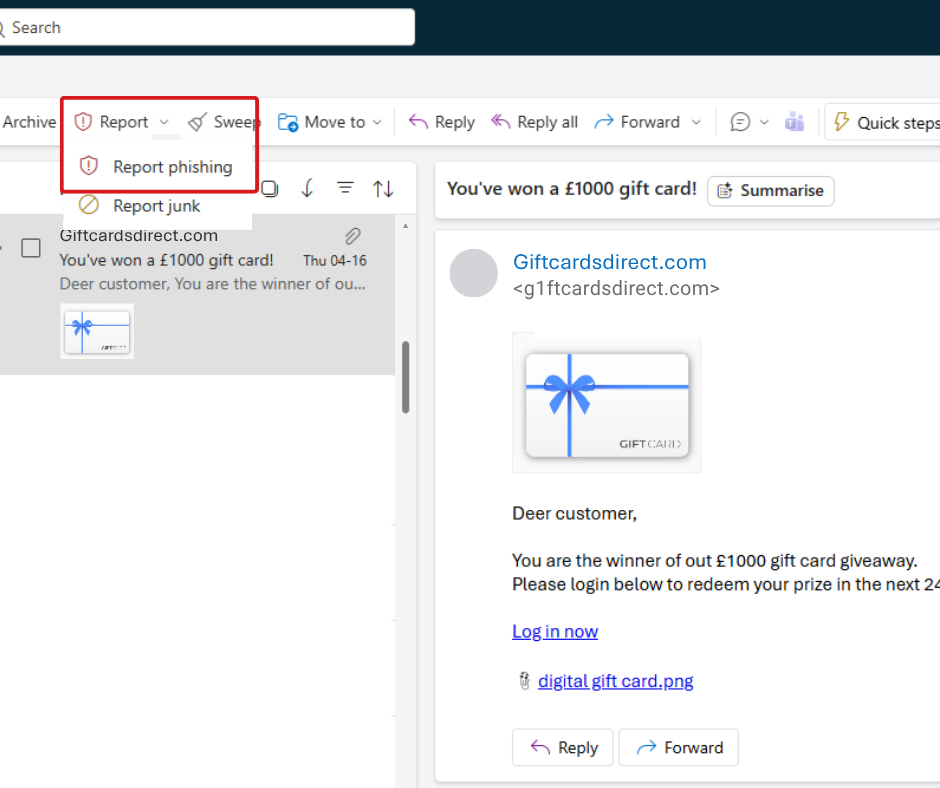
- In the toolbar at the top of the screen, click ‘Report’, then ‘Report phishing’.
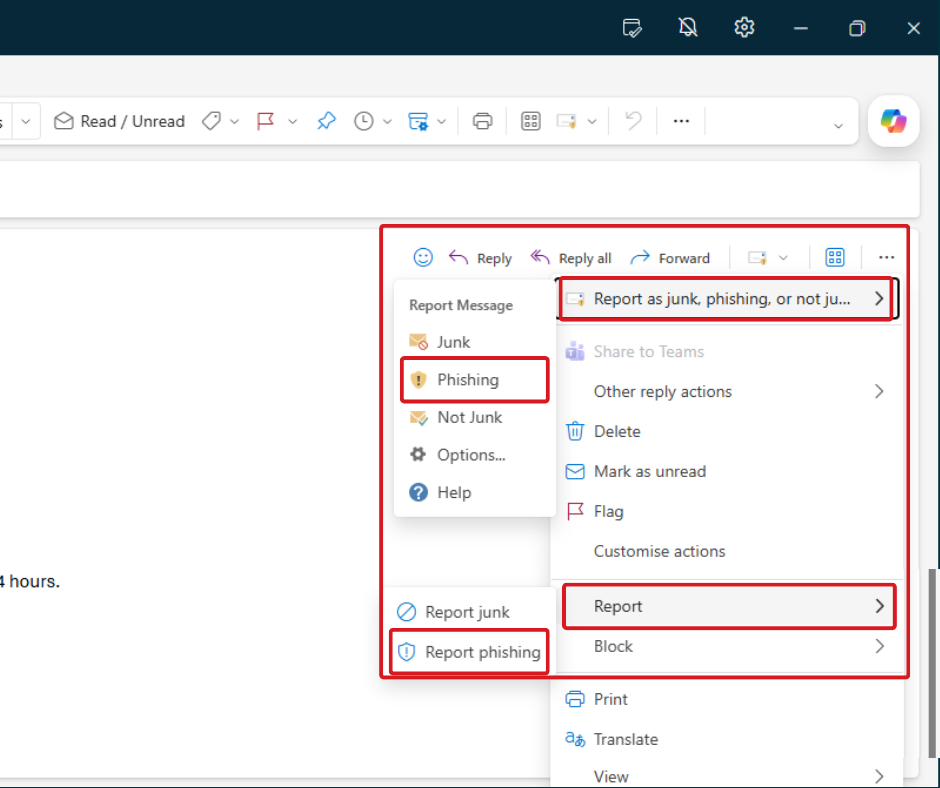
- Click the three dots at the top right-hand side of the email reading pane. Click ‘Report’, then ‘Report phishing’.
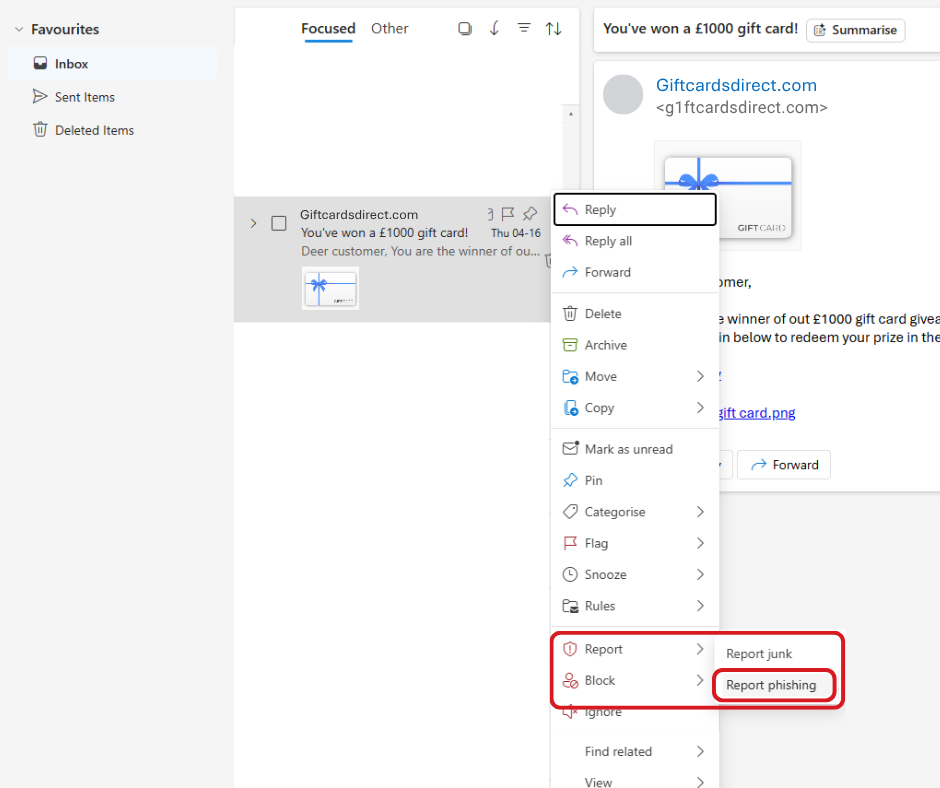
- Right-click the suspicious email in the message list. Click ‘Report’, then ‘Report phishing’.